Home or Code: which More AI workspace should you use?
New More AI conversations start in Home, for questions, research and files; Code remains a separate workspace for repositories. Here is the current model, including what happens to legacy Chat conversations.
The More AI team · Updated September 14, 2026
The current model: Home plus Code
More AI now has one default place for conversations: Home. A new conversation gets a workspace from the start, whether you ask a quick question or attach a folder and ask for a finished deliverable. Code stays separate because a software repository needs git-aware tools, commands, tests and a different permission boundary.
This is a simpler choice than the old three-mode split: choose Home for knowledge work and Code for a codebase. Both can use the providers and models you configure, but each exposes tools suited to its job.
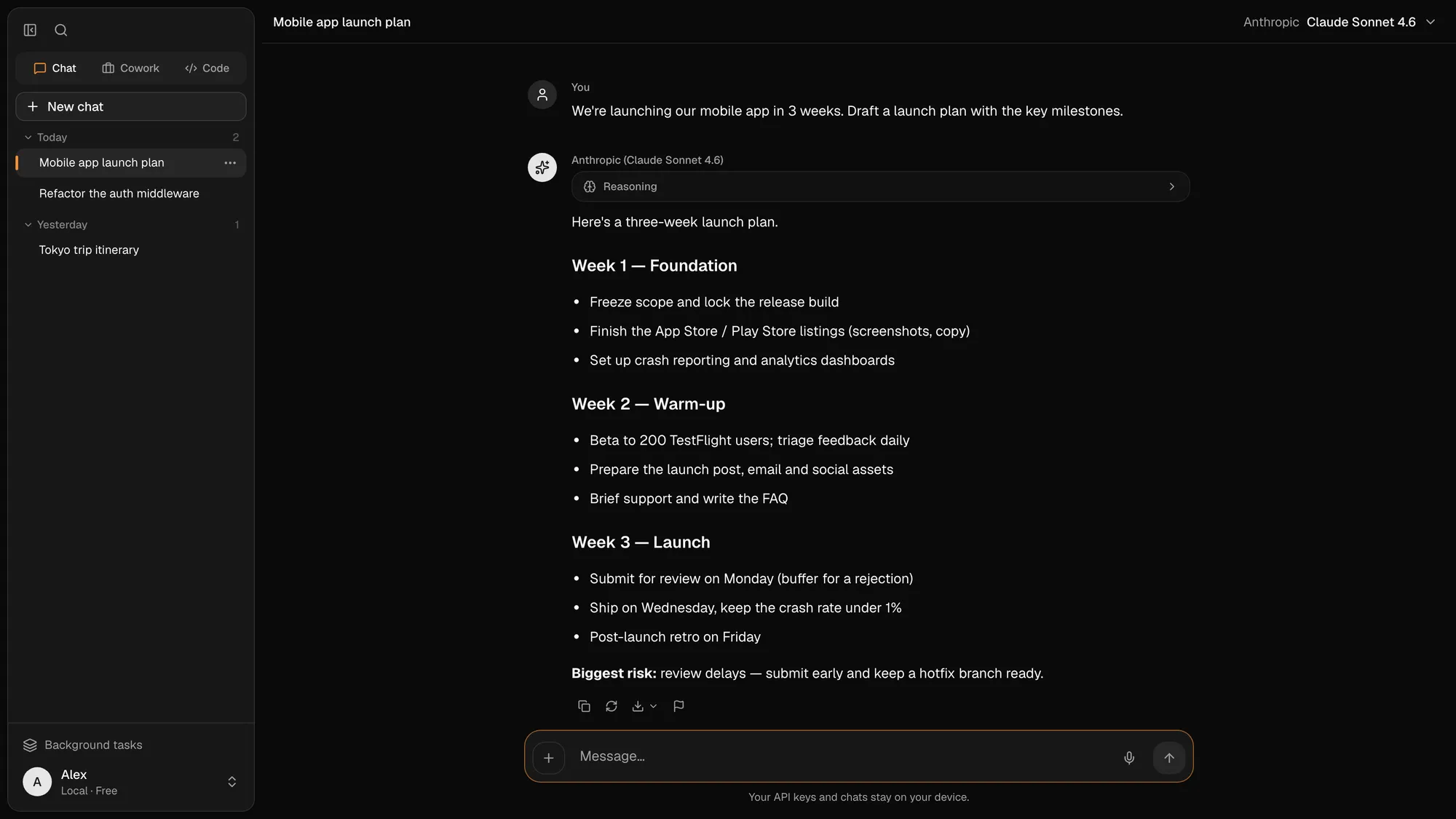
Home — where every new conversation starts
Use Home to ask a question, think through an idea, research a topic or work with files. You do not have to attach a folder: a lightweight question and a multi-file project begin in the same place, and the workspace can grow only when the task needs it.
When files are involved, the agent can inspect the workspace, propose steps and produce real deliverables. Keep each ongoing body of work in its own project when it needs persistent instructions and context; use a conversation without a project for a one-off task.

What happened to plain Chat?
Plain Chat is a legacy conversation type, not a deleted archive. Existing chats remain readable and can continue through their original runtime, so old links and history still work.
New conversations start in Home instead, each with its own workspace. That avoids a dead end where a quick question later needs a file: you can add context without moving the conversation into another mode first.
Code — build in your repository
Code is a planning coding agent for your repositories. It explores the codebase, proposes a plan, makes the changes across files, runs your commands and tests, and shows every edit as a diff — with real git branches, a built-in terminal and a browser to preview the result.
A permission ladder decides how much it may do on its own, while gated commands can pause for approval. Choose Code when the desired result is a reviewed change to a codebase, not merely an explanation of code pasted into a conversation.

A practical decision rule
Choose by the object being changed. If the output is an answer, report, spreadsheet, presentation, research note or a set of ordinary files, start in Home. If the output is a commit-sized change to a repository and should be checked with commands or tests, start in Code.
If a conversation in Home reveals a software task, open a Code workspace for the repository and carry over the goal and relevant context. Keeping the execution boundaries explicit makes permissions and review easier to understand.
- Question, draft or research task → Home
- Documents, spreadsheets, slides or a general folder → Home
- Repository changes, commands, tests and git history → Code
- Old plain conversation → keep reading or continuing it as a legacy Chat
Local work and cloud continuity
Choose the output first: everyday research and documents belong in the main workspace; repository changes belong in Code. Then choose execution: a local computer, an available cloud workspace, or a separately paired computer.
Cloud tasks and routines can continue when the laptop is closed. A task remotely running on your computer still needs that computer online. An account is required for cloud and cross-device access; available cloud features are temporarily free during beta, while your provider charges for usage on your own key.
Frequently asked questions
Is Chat still a mode for new conversations?
No. New conversations now start in Home, each with its own workspace. Existing plain Chat conversations remain readable and can continue through their legacy runtime.
When should I use Code instead of Home?
Use Code when the result should be a change to a repository and the agent needs branches, commands, tests or diffs. Use Home for questions, research, documents and general file-based work.
Do I need a folder to start a conversation in Home?
No. A quick question can begin without a project. Attach files or use a project when the task needs persistent context or a deliverable.
Can I change source code from Home?
Home can work with ordinary files, but Code is the intended workspace for repository changes because it adds git-aware review, commands, tests and a dedicated permission boundary.
Which workspace can continue in the cloud?
Cloud runs of Home tasks and routines are available in beta. Synced, paired and cloud Code paths are also under active beta development, so availability can vary by account and environment.
How More AI works
From download to first result in three steps
All you need is a key for an AI model. If you don’t have one, OpenRouter gives you one in a couple of minutes. An account is optional.
Install the free app
For macOS, Windows and Linux. It keeps itself up to date.
Paste your key
OpenRouter, OpenAI, Anthropic, Google, DeepSeek and 30+ other providers — or a model running on your own computer. Pick a model for each task.
Ask for the result
Point it at a folder, a website or a repository and say what you need. Every change shows up for you to review.