Getting started with More AI: from download to your first task
Install the free desktop app, add a provider key and start a Cowork task in about five minutes. Signed-out desktop work does not sync; signing in starts the configured sync categories, while cloud execution remains a separate opt-in.
The More AI team · Updated September 12, 2026
What you need
More AI is a free desktop app that can run an agent on your own computer and use the model provider you choose. For a local first task, you need the app and one API key from a provider such as Anthropic, OpenAI, Google, Mistral, Groq or OpenRouter.
An account is optional for desktop work. Signed-out work does not synchronize. After you sign in, the configured conversation, Code, Cowork, routine, memory and profile categories synchronize by default and can each be disabled; cloud execution is a separate switch and stays off until you enable it.
Install the app
Download the build for your platform from the home page. On macOS, open the .dmg and drag More AI into Applications; the first time you launch it, right-click the icon and choose Open. On Windows, run the installer and click “More info → Run anyway” if SmartScreen appears. On Linux, mark the .AppImage executable and run it.
The app can check for and install updates in place according to the update policy you choose (automatic, notify or manual). You can still download and install a release manually when needed.
Add your first key
On first launch More AI walks you through a short setup: pick your language and theme, then paste in a provider key. Create the key in your provider’s dashboard (for example console.anthropic.com or platform.openai.com), copy it, and paste it into the matching field.
On desktop, the key is kept by the app and used for the provider you added. A cloud run uses a provider credential only for work you start in the cloud, so treat local and cloud execution as two explicit choices rather than assuming every task is uploaded.
Your first Cowork task
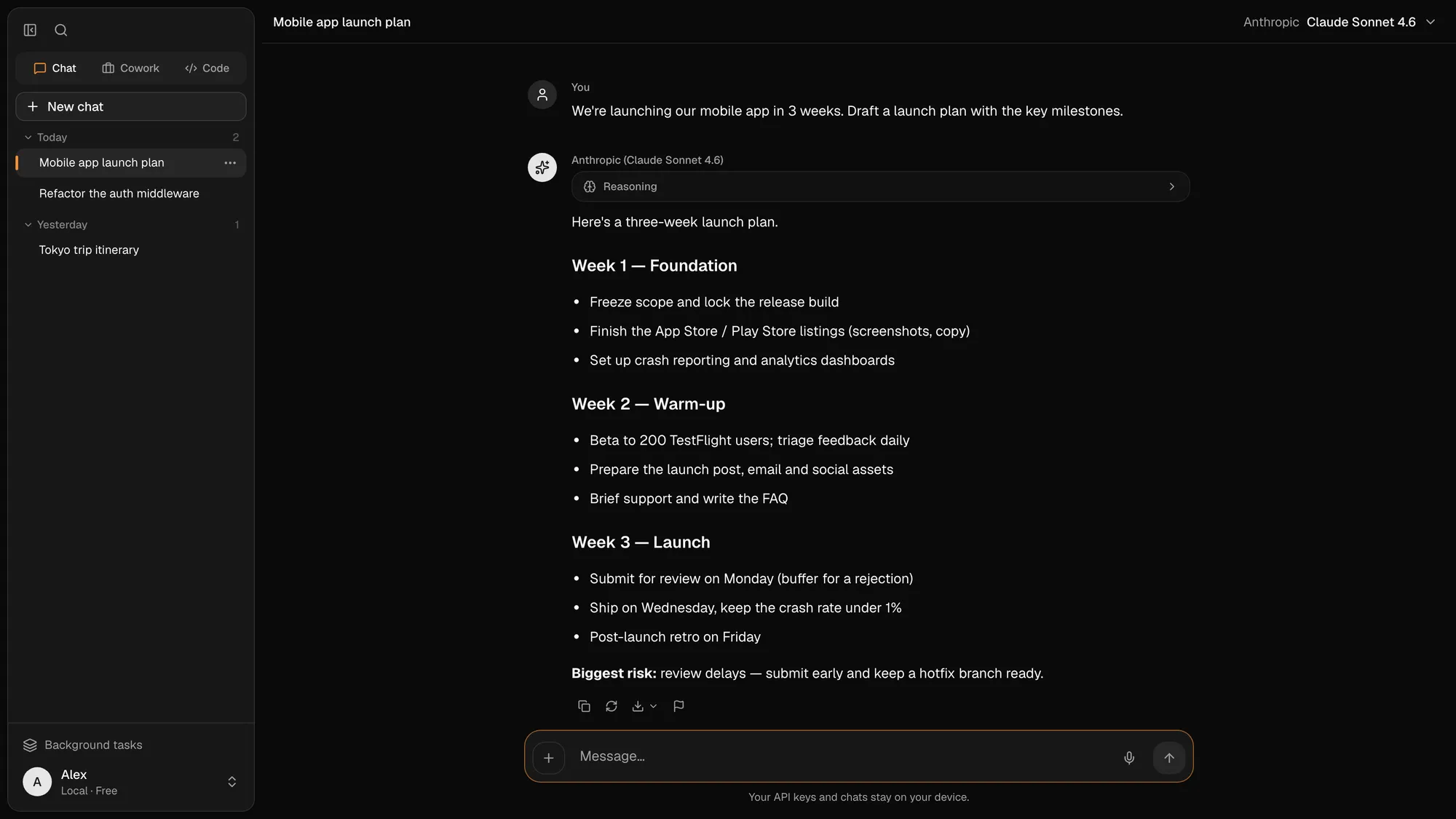
New conversations now start in Cowork. Pick a model, describe the result you want and attach a folder or files when the task needs them. Cowork gives the conversation a workspace, so the agent can move from an answer to a document, spreadsheet, presentation or other deliverable.
You can begin without attaching anything and add context later. Existing plain Chat conversations remain readable and can continue through their original runtime; they were not deleted when Cowork became the default for new work.
Where to go next
Use Cowork for everyday questions, research and file-based deliverables. Open Code separately when the outcome is a change to a software repository. Add an account later if you want a task to run in the cloud or follow the same work from the web and other devices.
- Cowork or Code: which workspace to use, and when
- Cowork: turn any folder into an AI project workspace
- Code mode: run a coding agent on your own repository
- Built-in browser: preview your app and capture the page
- Routines: schedule repeatable local or cloud tasks
- Sync and cloud continuity: follow work on another device
- Search: jump to any chat, project or task with one shortcut
Frequently asked questions
Do I need an account to use More AI?
Not for local desktop work. An account is optional there, but it is required for cloud execution, synchronization, the web app and access from another device.
Which providers can I use to get started?
Any of Anthropic, OpenAI, Google, Mistral, Groq, DeepSeek, Qwen or OpenRouter, plus any OpenAI-compatible endpoint — including local servers like Ollama. One key from any of them is enough to begin.
Does my work stay on my computer?
Signed-out desktop work is not synchronized, though prompts sent to an online model still go to that provider. After sign-in, configured sync categories are on by default and send the supported data they need; each can be disabled. Cloud execution is separate and remains off until enabled.
How much does More AI cost?
The desktop app is free. With your own key, you pay the model provider for tokens at its API rates. Cloud execution and cross-device access are the subscription layer; during the current beta, cloud features are temporarily available free.
Does More AI update itself?
It can check for and apply updates in place according to your automatic, notify or manual update setting. A manual release download remains available if an update is declined, deferred or cannot be applied in place.